
FIELD GUIDEMORTAL SHELL II
Mortal Shell II PC Crash Troubleshooting
Updated: . Sources checked: . Scope: post-launch PC support information; the cache steps apply to Windows with an NVIDIA GPU. These suggestions have not been independently tested in-game by this site, and the sources do not establish one applicable build for every symptom.
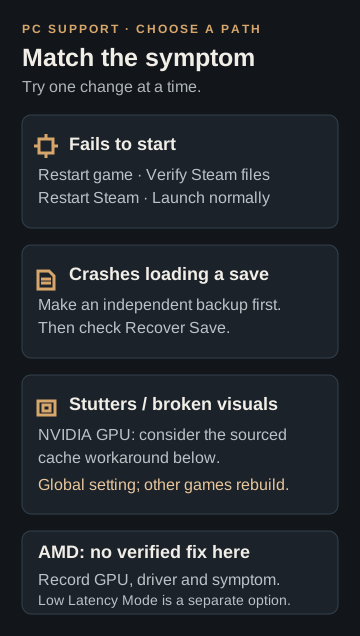
Game fails to start
The launch-support thread recommends restarting the game, verifying its Steam files, restarting Steam, and launching normally rather than as Administrator. Try one change at a time and record the result. Compare your hardware with the current official requirements; meeting them alone does not identify a crash's cause.
Game crashes while loading a save
First follow the Windows save-folder and backup guide. The support author suggests the loading screen's Recover Saveoption for this symptom. Keep your independent backup and check progress after recovery; do not experiment with overwriting save files.
NVIDIA: stutters, broken visuals or shader-related problems
MikkelFromGames' NVIDIA cache guide describes a potential workaround. Clearing the driver cache affects other games too: they will rebuild shaders on subsequent launches. It is not a save-file deletion procedure, and it does not guarantee a resolution.
- Close all games, make the save backup above, and record your current global shader-cache setting so you can restore it.
- In NVIDIA App, open Graphics, then Global Settings, then the edit control for Shader Cache Size.
- Use the additional-options menu to select Clear Cache and confirm the cache operation. If these controls are absent, consult the source's Control Panel alternative rather than deleting guessed folders.
- The source also suggests an optional cache-capacity adjustment. Check available disk space first and remember this is a global driver setting; this guide does not prescribe one size for every machine.
- Restart the PC and compare the same scene or loading step.
Player reports: results vary
The support thread reports that some NVIDIA players improved crashes or stuttering by disabling RTX. Its cache-capacity reports also differ between users. These are individual results, not confirmed universal settings. NVIDIA-specific advice should not be applied to AMD GPUs or consoles.
AMD: GPU Crash Dump Triggered
A recent RX 7600 report describes repeated crashes with this error. The player said that reinstalling Windows, updating drivers and lowering graphics settings had not resolved it. MikkelFromGames asked for the operating system, full specifications and overclocking information. This is an individual report, not evidence that every AMD card has the same fault.
Keep the exact error text and note whether the failure occurs before the menu, during loading or in a particular area. Do not apply the NVIDIA cache instructions to an AMD system. The thread does not establish a confirmed game-wide fix, and its suggestion to run as Administrator conflicts with the launch-support guidance above.
Input delay without a crash
If the game runs but inputs feel delayed, see the Low Latency Mode guide. The September 24 announcement added a menu option for NVIDIA Reflex and AMD Anti-Lag 2. It does not say that this option repairs GPU crashes or fixes every source of stuttering.
If the problem continues
Record your game version, Windows version, GPU and driver, the exact failure stage, error message, and what changed after each attempt. Include whether the issue began after an update. Compare the official patch summariesbefore seeking game support through the official Discord.
Sources: launch bug-report thread and PC NVIDIA cache guide, both by u/MikkelFromGames. The launch thread is marked Official News; player reports within it are identified separately above. Also checked: the RX 7600 discussion and official September 24 announcement.